Chapter Topics
Assigning a Bar Code to an Item
Printing Bar Code Labels
Printing Bar Code Labels from Documents
Reading Bar Codes
Configuring the Bar Code Printer
Using bar codes can significantly speed up most of the processes you need
to undertake to run your store including: receiving merchandise, selling the
merchandise and counting the merchandise. While it may take a little bit
of work to set up the bar code system, once it is set up it will undoubtedly
save you lots of time. It will also make your control over your inventroy
more accurate.
A bar code is simply a number. Scanning or reading a bar code is nothing
more than a quick way of entering this number into the system. Once this number
has been entered, XpertMart™ looks-up the Item that
"belongs" to that number and all other information related to that Item such
as its Size, Color, Price, Style and so on.
Assigning a Bar Code to an Item
Chances are that most of the merchandise you receive from your
vendors already comes with a bar code, either as a label on a shoe box, a
tag on clothing or even printed on the plastic exterior of an item. In these
cases, you do not need to print new bar code labels. All you need to do is
assign the existing bar code to the item in the Items Catalog. Make sure that
the bar code the vendor is using is for an item (that is a specific size/color
combination) and not for the style as a whole.
To assign a bar code, open the Items Catalog and find the Item you wish
to assign a bar code to. Move the cursor to the EAN/UPC field and scan the
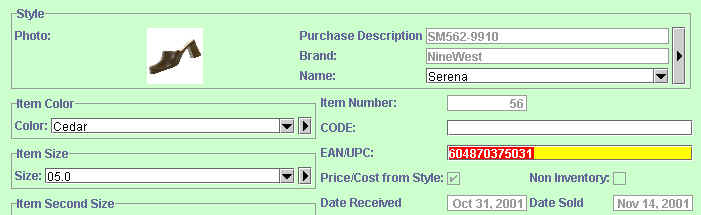
bar code. The code will appear in the EAN/UPC field as shown below. Be sure
to press the save button on the toolbar at
the top of the catalog.
For the merchandise that does not already come with a bar code, you will
need to print up bar code labels or tags. There is no need to assign a bar
code number to the Item (you can just leave the EAN/UPC field blank). XpertMart™ uses the Item Number (56 in the example above) as the
bar code number. The bar code label will print out this number.
If you happen to print out a bar code label for an item that already had
a bar code assigned to it by a vendor, there is no need to worry. XpertMart™ reads the number in the EAN/UPC field and the Item Number
interchangeably. In either case, the system knows that it is dealing with
the same item of merchandise. For example, if you scan a bar code label with
either the number "604870375031" o the number "56", the system knows to look-up
a Serena slipper: Cedar color, Size 5.0.
Printing Bar Code Labels
To print a bar code label, open the Items
Catalog and find the Item you need a bar code label for. Press the label
button  on the toolbar at the top of the catalog. A window
will appear asking you how many lables you want to print. The number you enter
will be the number of labels the system prints.
on the toolbar at the top of the catalog. A window
will appear asking you how many lables you want to print. The number you enter
will be the number of labels the system prints.
If the button appears grayed out, it means that the system does not detect
a label printer. Make sure your label printer is plugged in and that you've
selected the proper printer driver.
Printing Bar Code Labels from Documents
You can also print bar code labels from any document. Recall that all transactions are stored as documents in a Document
Catalog. If you press the label button on the toolbar at the top of the catalog, one
bar code label for every piece of merchandise listed in the document will
print out. If there are 54 pieces of merchandise on a Receipt, pressing the
label button will print out 54 bar code labels. If there are 4 pieces of
a certain item, then 4 of the same labels will print out.
Printing bar code labels straight from documents can be a
big time saver. When you make a Purchase Order, for example, you can print
out in advance the bar code labels for all items on the P.O. When making
a Receipt, it is far easier to press a single button to print out all corrsponding
labels than to have to find each item individually in the Items Catalog.
Reading Bar Codes
Most bar code scanners can read the vast majority of standards
or bar cade formats. In some cases, you may have to program the bar code
scanner to be able to read a certain bar code format. If you have problems
reading a bar code, check the bar code scanner's manufacturer's manual for
help on programming the scanner. This is easy to do and usually just involves
scanning some printer bar codes in the manual. The bar codes that XpertMart™ prints follow the "Interleaf 2 x 5" format.
If you have trouble scanning a certain bar code, the problem is most likely
with the bar code reader and not with XpertMart™.
You can verify that the problem is with the reader by opening the Text Pad
or your computer's word processor and scanning the bar code into a blank
document. The bar code number should appear. If it does not, the problem
is with the scanner.
If the scanner is not reading a bar code, refer back to the manufacturer's
manual to make sure it is programmed to read this specific bar code format.
Also, check to make sure that the bar code label is not faded and that there
is enough blank space (about 1/4 of an inch) between the bar code and the
edge of the label. If you still cannot read the label, you will have to input
the bar code number manually and, if the problem persists, print out bar
code labels in a different format (or check with the manufacturer to make
sure your scanner is not defective).
If XpertMart™ is unable to find a bar code you
are attempting to scan into the system you will see this error message:
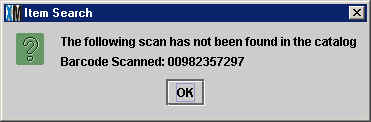
If this is the case, the first thing you should do is try scanning the bar code again. If you still get this error messageit means that the bar code was not correctly assigned to the item. You can go back to the Items Catalog and check or, if you are short of time, you can manually enter the bar code number (00982357297 in this case).
Configuring the Bar Code Printer
The design of the bar code label is contained in the printer driver
which is a small program written in Java (called a "class") with instructions
to the printer on how to print the label. If you want to change the format
of your bar code label, contact your XpertMart™ Authorized Dealer for help. There
is usually great flexibility in the design of the lable and you can include
elements such as the Price, Size, Color, Style and Brand.
Most bar code label printers are able to print on a variety of media,
including: labels (usually for shoe boxes), tags (usually for clothing) and
butterfly lables (usually for jewelry). Each one of these media requires
its own printer driver. You select the printer driver to use in the Label Printer tab of the Station Configure menu.
Note: If your bar code printer comes with its own driver or software, do
not install it. XpertMart™ uses its own drivers;
if you install other drivers these may interfere with the proper functioning
of XpertMart™. If your bar code printer seems
to be printing slowly, enter the Printers directory in Windows and select
the bar code printer. Make sure the spooling option is turned off.
If the printer is not aligning the bar code on the labels properly, you
will need to auto-adjust the printer. Usually this is done by simply turning
the printer off and holding the Feed button while you turn it back on, but
be sure to check the printer manufacturer's manual for detailed instructions.
Copyright © 2002 XpertMart