Chapter Topics
General Considerations
Recommended Order for Data Entry
Required Entries
This chapter covers a few important recommendations you should pay attention
to before you begin entering data into the Catalogs in XpertMart™.
The data entry can be a lengthy process so it is worth planning ahead to avoid
complications down the road. The time you spend entering data in the beginning
will pay off later when you run reports and have a wealth of information to
help you make better decisions. Before you begin, you should read the Catalogs topic to understand the basic layout of
a catalog and the functioning of the toolbar.
General Considerations
Before you make any transaction,
be sure you have opened every catalog at least once, even if you do not enter
any data into the catalog. When you open a catalog for the first time, XpertMart™ is in fact creating the table for that catalog
in the database. Some transaction windows will not open if the proper database
table does not exist. For example, if you have never opened the Transportation
Catalog, the Out Slip transaction screen will not open. Similarly, if you
have not opened the Vendor Terms catalog, the Receipt transaction screen will
not open. Your safest bet then, is to open every catalog once, even if you
don't add any records.
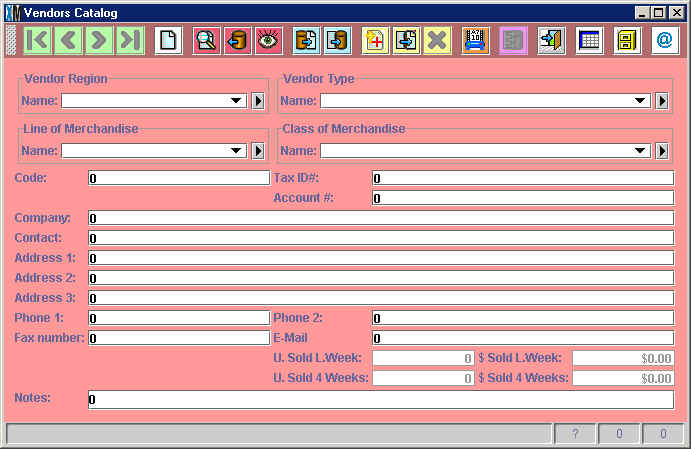
When you enter a catalog for the first time you will find zero
records stored in it. You will see "0" in every field and a "?" in
the Current Records Box in the bottom
right-hand corner, as shown in the image below:
This means there are no records currently in the catalog. It is very important
that you do not start entering data in the catalog before you press the New Record Button  . Otherwise you run the risk of saving this information in the "zero" virtual
record which could creat problems down the road. If you have accidentally
started entering data, and then press the New Record Button, be sure to answer
<NO> when XpertMart™ asks if you want
to save your changes, or just close the catalog.
. Otherwise you run the risk of saving this information in the "zero" virtual
record which could creat problems down the road. If you have accidentally
started entering data, and then press the New Record Button, be sure to answer
<NO> when XpertMart™ asks if you want
to save your changes, or just close the catalog.
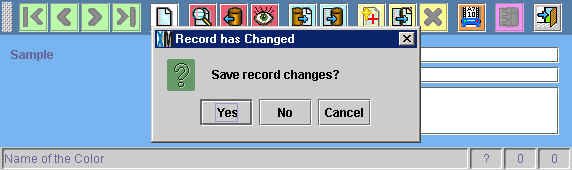
If you have been entering data in the "zero" record and press the Save Button  you will see the following error message:
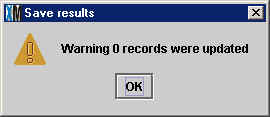
Press <OK> and then press the New Records Button to start
again. You will lose the information you have entered.
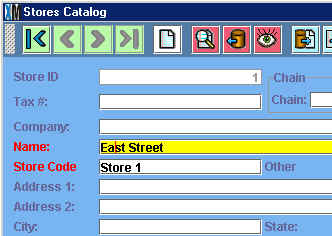
When you are entering data into a catalog, you will notice that the names
of some fields appear in red. These are the fields that must be filled out
for XpertMart™ to function properly; every other
field is optional. In the image below, taken from the Stores Catalog, only
the Name and Store Code field are required; every other field can be left
blank. However, filling in other fields is recommended since they can enhance
the kind of analysis you can do. If you do not classify the Chain a store
belongs to, then you will not be able to compare the relative profitability
of your chains of stores, for example. The ulitmate decision is left to the
discretion of every user.
In several catalogs you will notice that there is a Code field which is
an optional field in every catalog, except for the Stores Catalog (where the
Store Code field is used to populate the XpertMatrix™). The Code field (shown below) is there so that users
of legacy systems that required the use of codes can import those codes into
XpertMart™. However, becuse XpertMart™ runs on a relational database and because there is no
limit to the number of characters in any field, there really is no need to
use codes in the system anymore. Therefore, the Code field can safely be ignored
by the majority of users.
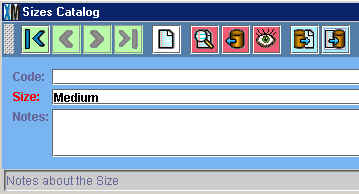
The image above is taken from the Sizes Catalog, which is an example of
a catalog where entering a size code is really not necessary.
The information you enter into a catalog in XpertMart™
is case-sensitive. Keep this in mind if you are thinking of entering
information using all upper-case or all lower-case.
Finally, as you enter information into catalogs, it is very important that
you never erase a record in a catalog that has already been used in another
catalog: for example, if you have created a certain size in the Sizes Catalog
and that size has already been referenced by an item in the Items Catalog.
Otherwise the integrity of the database could be compromised. If you have
any doubts, contact your XpertMart™ Distributor for
help. Similarly, if you accidently duplicate a record in a catalog, the safest
thing is to rename that record rather than delete it.
Recommended Order for Data Entry
Before you begin populating your catalogs with data, defining
the departments you will use as well as understanding the basic structure
of the Styles Catalog is highly recommended. When you do begin to configure
XpertMart™ and enter data at the Main, the following order is recommended:
Configure > File Configure
Configure > Add a Store (if
necessary)
Configure > Store Configure
Configure > Configure Inventory
Catalogs > Employees (capture at
least a master employee to gain access to the whole system)
Catalogs > Taxes > Tax Types, Tax Zones, Taxes
Catalogs > Stores
Catalogs > Vendors
Catalogs > Departments > Lines, Classes, Subclasses, Types and Departments
Catalogs > Items > Colors, Sizes, Second Sizes, Size Matrix, Second
Size Matrix
Catalogs > Styles > Seasons, Materials, Collections, Brands, Styles
Catalogs > Clients
Later on you will need to fill in the POS and Documents Catalogs as you
get ready to enter transactions. You may also want to enter data into the
Vendor Regions, Vendor Terms and Vendor Types catalogs; as well as the Store
Regions, Store Chains and Store Types catalogs.
Required Entries
In virtually every catalog in XpertMart™
you are free to enter any kind of information you want in any order you want.
However, there are three catalogs in XpertMart™ where
there are required entries for the system to function properly: the Document
Types Catalog, the Payment Types Catalog and the Currencies Catalog. These
are the required entries in the correct order:
Document Types Catalog
1) Receipts
2) Invoices
3) Adjustments
4) Counts
5) Out Slips
6) In Slips
7) Returns
8) Cost Adjustment
9) Sale Order
Payment Types Catalog
1) Cash
2) Credit Card
3) Check
4) Coupons
5) Foreign Currency
6) -Open-
7) -Open-
8) Store Credit
9) Layaway Balance
More than likely these three catalogs will already have the proper entries
when you install XpertMart™. However, be sure to double-check to avoid any problems
down the road.
Copyright © 2002 XpertMart